Steam Deck compatibility guide
1666 Amsterdam Steam Deck Compatibility: Can You Play It?
A dated answer for Steam Deck owners: what the current compatibility label says, what the available Linux reports actually test, and how to check a changing Early Access build without trusting an unverified FPS preset.

Quick answer
Treat Steam Deck compatibility as unconfirmed for a reliable play session
Sources checked:
ProtonDB currently displays “Unsupported” for the Deck status and lists 19 Linux reports. Visible details are from desktop CachyOS systems, not Deck tests. This is a caution signal, not proof that every Deck fails or a promise about a future build.
Displayed Deck status
ProtonDB showed Unsupported on 5 November 2026; recheck for changes.
Linux reports shown
19 reports; desktop Linux results are not Deck tests.
Game state
Steam lists the game as Early Access, where it may change.
How to read the label
What “Unsupported” does and does not tell you
The label is a reason to pause before buying specifically for handheld play, but it does not identify one cause. Compatibility can involve launch behavior, controls, text, a launcher, or another part of the experience; the label does not say which applies here.
ProtonDB is a community resource that combines a Deck status with Linux reports. A CachyOS desktop using custom Proton and a separate graphics card can inform Linux troubleshooting, but it does not reproduce Deck hardware, SteamOS, controls, power limits, or display.
Controller support on a store page would not confirm a complete handheld experience. It cannot show that this Deck build launches, keeps stable frame pacing, displays readable text, or remains usable after an update.
- The status is a dated snapshot.
- Linux reports need their OS, Proton version, hardware, and test details.
- Unsupported is not an FPS measurement or a validated settings profile.
Evidence, with boundaries
Steam facts and community reports answer different questions
Steam gives release context; ProtonDB shows community observations. Neither supplies a reproducible Deck performance profile here.What the Steam listing confirms
Steam describes the game as Early Access, not complete, and subject to change. The listing retrieved for this check provided no Deck settings profile, target frame rate, or tested Proton version.
What the ProtonDB page shows
The page displayed “Deck Verified Status: Unsupported” and 19 Linux reports. Visible details include desktop Linux and desktop GPUs, not a controlled Deck benchmark; they cannot establish a launch guarantee or graphics recommendation.
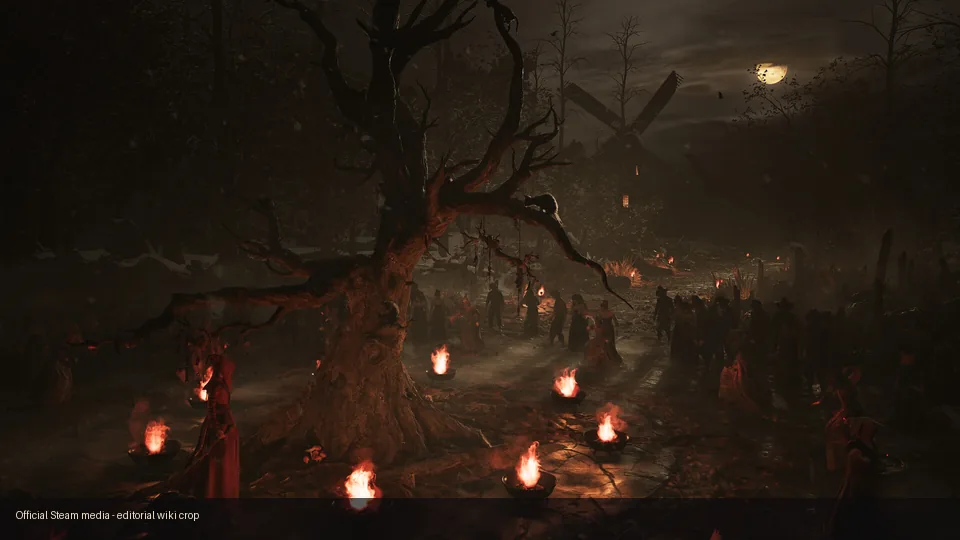
Build and content matter
Why a Prologue test would not settle Early Access compatibility
A test result belongs to the exact build, content, and device that produced it.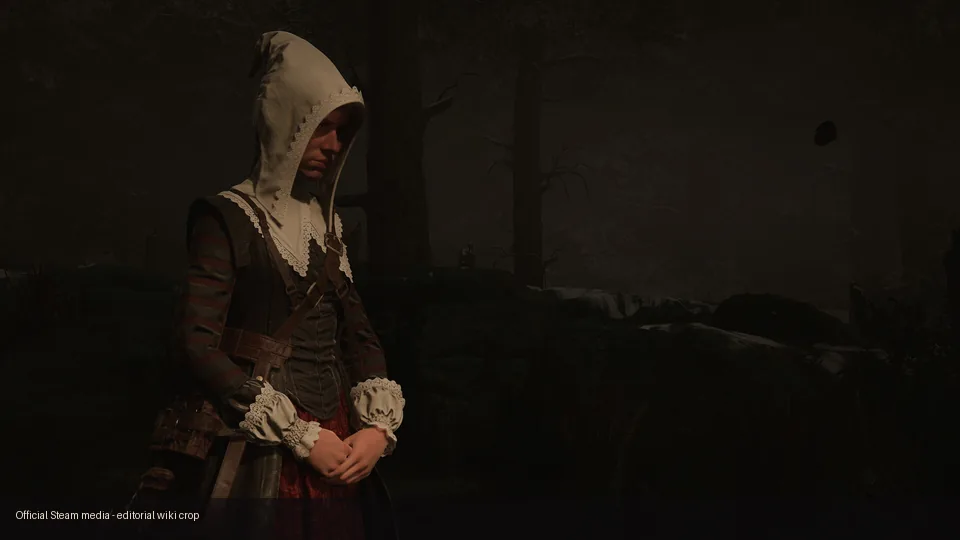
The Prologue and Early Access game may differ in content and patch level. A Prologue launch on a Deck would not establish that the current full game behaves the same; failure in one build does not prove every version fails.
For older posts or videos, check the date, game build, SteamOS, Proton, and whether the test used a Deck. A game-scene screenshot cannot provide these details. Without them, treat the claim as an anecdote.
This page does not repeat a 45 FPS recommendation found in some results. Retrieved material had no reproducible Deck test with the same build, settings, scene, and measurement period, so the number is unverified.
If you already own a Deck
Run a small, repeatable compatibility check
Change one variable at a time and keep the observations tied to a date and game build.1. Record the starting point
Record the date, Steam game version, SteamOS, Deck model, and Proton choice. Start with your normal setup for a clear baseline.
2. Install from the official listing
Use the Steam listing above and let installation finish. Avoid unofficial repacks or similarly named builds.
3. Test launch and basic controls
Check launch, built-in controls, menus, and text at handheld distance. Note the failure point instead of writing only “works” or “broken.”
4. Repeat one gameplay segment
Choose a repeatable save point or short route. Observe loading, input, frame pacing, audio, and crashes over the same segment.
5. Try a compatibility change only when needed
If default launch fails, test one Proton option at a time and record it. Return to baseline if behavior worsens; do not stack undocumented tweaks.
6. Recheck after a game update
An Early Access patch can change behavior. After an update, repeat the same short test before relying on an older report.
Make a report another player can interpret
Include the date, Deck model, build, SteamOS, Proton, launch outcome, scene, controls, and symptom. Separate your observation from a suggested workaround. On ProtonDB, say whether you tested a Deck or Linux desktop.
Troubleshooting without guessing
What to check when one part of the test fails
Keep a short note of each change so a workaround remains reversible.The game does not launch
Confirm the update completed, then use Steam's file verification option. Record the default result before trying one Proton choice. If it still fails, capture the error and build instead of stacking launch options.
Menus or controls are difficult to use
Check menus, prompts, and text at handheld distance. Try the standard gamepad layout before a custom Steam Input mapping; a mapping cannot fix launch or rendering failures.
Frame pacing or loading feels inconsistent
Repeat the same area to separate a one-time load from recurring trouble. Report observations, not a universal target. Remove custom frame caps or power changes before comparing.
Audio, cutscenes, or battery behavior is unclear
Test these separately: note missing or delayed audio in the same scene and measure battery over a consistent interval. Do not extrapolate from a brief menu session.
When to wait
Choose whether to test now or wait for clearer evidence
If handheld play is your main reason to consider the game, wait for a dated Deck report or a status update. If you own it and accept Early Access changes, a short test can answer whether your setup works, not establish a general recommendation.
Before a long session, recheck Steam and report dates, then compare the build and Proton version. “Linux” or “runs” may refer to a desktop, another build, or a brief launch test.
- Do not rely on an unverified frame-rate preset.
- One successful launch does not prove a stable full session.
- Pair settings screenshots with hardware, build, and results.
Sources checked
Recheck these pages for changes
The label and Early Access build can change. These sources were checked on 5 November 2026.
Continue reading
More 1666 Amsterdam guides
PC system requirements
Compare Windows requirements; a PC test is not Deck evidence.
Read PC requirementsPrologue review and walkthrough
See what the Prologue covers and why it does not certify the full game.
Read the Prologue reviewFAQ